 ThingzSafe
Android and web portal
Pro category fields and prompts
With Pro, choose which information your category records.
Where to start
Android: Home Menu Organise Manage Categories Edit category Customise fields
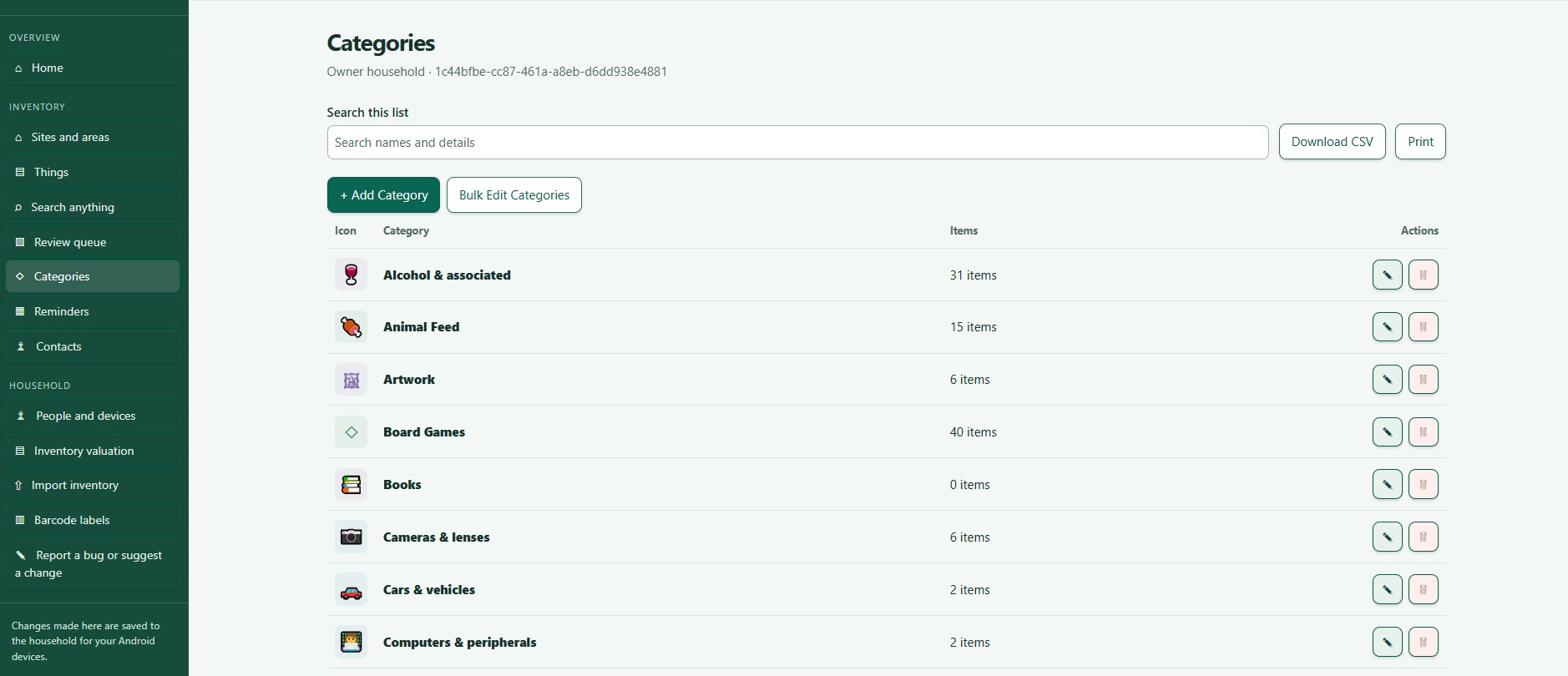
Web portal: Categories Edit Category Fields and prompts
Fields and prompts
A field holds a value, such as a date or a quantity. A prompt is the name shown beside it. With a Pro plan you can rename these, hide the ones you don't need and add your own.
Plan: Pro. Without a Pro plan the app says it is needed and shows the plans. Your own settings are kept if your plan ends.
Rename, hide and reorder fields
- Open the Category and tap Customise fields.
- To rename a field, type a new Displayed name. Names can be 1 to 40 characters long. Tap Use standard label to go back to the original.
- To hide a field, untick Displayed?. Essential fields must stay displayed.
- Use Move up and Move down to change the order.
- Tap Save.
Good to know: Hidden values are kept. You can show the field again at any time.
Add your own fields
- Tap + Add column.
- Type its Displayed name and choose its Entry type.
- Choose whether it is mandatory or optional.
- Tap Save.
- The types are: whole number, decimal (two places), short text (up to 200 characters), long text (up to 4,000 characters), date and time.
- Standard fields cannot change type.
- A hidden mandatory field will not stop you from saving.
Where it applies
Your changes apply to Things, Parts and Contents in that Category: when you edit them, view their details and print them.
Good to know: Field names stay exactly as you typed them, whatever language the app is in.
Need more help or have a suggestion? Contact us.