 ThingzSafe
Add lots of items
from a few photos
Photograph a room, shelf or collection. ThingzSafe turns what it can see into a list you check before anything is saved.
You stay in control. Nothing is added to your inventory until you have checked the suggestions and confirmed that you want to save them.
- Before you start
- 1. Open the place
- 2. Add photos
- 3. Process
- 4. Check
- 5. Repeats
- 6. Save
- Stock checks
- Your photos
- If something looks wrong
Before you start
What you need.
- ThingzSafe Pro on Android, with your phone connected to your Pro household
- An internet connection
- A manageable group of items. One bookshelf, a workbench or a section of a store is a good start.
- No OpenAI account, ChatGPT subscription or key. You do not need your own.
There are limits on how much you can use recognition. If you use up your allowance, you can carry on adding items in the usual way.
Quick reminder. A Site is a place such as Home or Farm. An Area is somewhere inside it, such as Garage or Barn. A Thing is an item you track. Its Contents are items stored inside it, such as books in a bookcase. Its Parts belong to it, such as the wheels on a trailer.
Step 1
Open the place you want to catalogue.
Open the Site or Area where the items belong, or open a Thing and its Parts, Contents or collection list. Choose Bulk AI recognition.
Starting in the right place helps ThingzSafe understand your photos, and puts the new entries where you expect them.
Step 2
Add your photos.
- Choose Add camera photos to take photos, or Add photos from device to pick photos already on your phone.
- Add up to ten photos. Take a wide shot first, then closer shots of shelves, titles or labels.
- Check the small previews. Open one to see it larger, or choose Remove photo if it is blurred or not useful.
- Before adding photos, choose what you are photographing, such as Books or Tools/workshop equipment. The field starts blank. If you tap a photo button without choosing a type, select the type first, then try again. Use General/mixed objects for a genuine mixture.
Tips for better results. Overlapping photos are fine. Keep things still between shots and make sure there is plenty of light. For books and albums, move close enough to read the lettering. A wide photo may show that books are there without showing their titles.
Step 3
Process the photos.
Read the note about sending photos for recognition, then tap Process photos. You will see progress while your photos are sent and checked. Bigger or busier batches take longer.
What is sent. Your selected photos, and relevant descriptions from your inventory, are sent to OpenAI to recognise items and suggest matches. Keep people, passwords and other private details out of your photos.
Step 4
Check the suggestions.
Look through the results before you save anything.
Name
Correct anything that is unclear or wrongly read.
Quantity
Check how many real items there are. Several photos of one chair still mean one chair.
Source photo
Choose View source photo to see what a suggestion came from.
Possible existing match
Check whether you already have it. A similar name is a hint, not proof.
Include
Leave ticked only what you want to add. New suggestions start ticked. Suggestions with a possible existing match start unticked.
Already recorded? Leave the suggestion unticked so you do not add it twice. If you really own another one, tick it. Saving creates a new, separate record. It does not replace your existing entry or add to its quantity.
The review screen
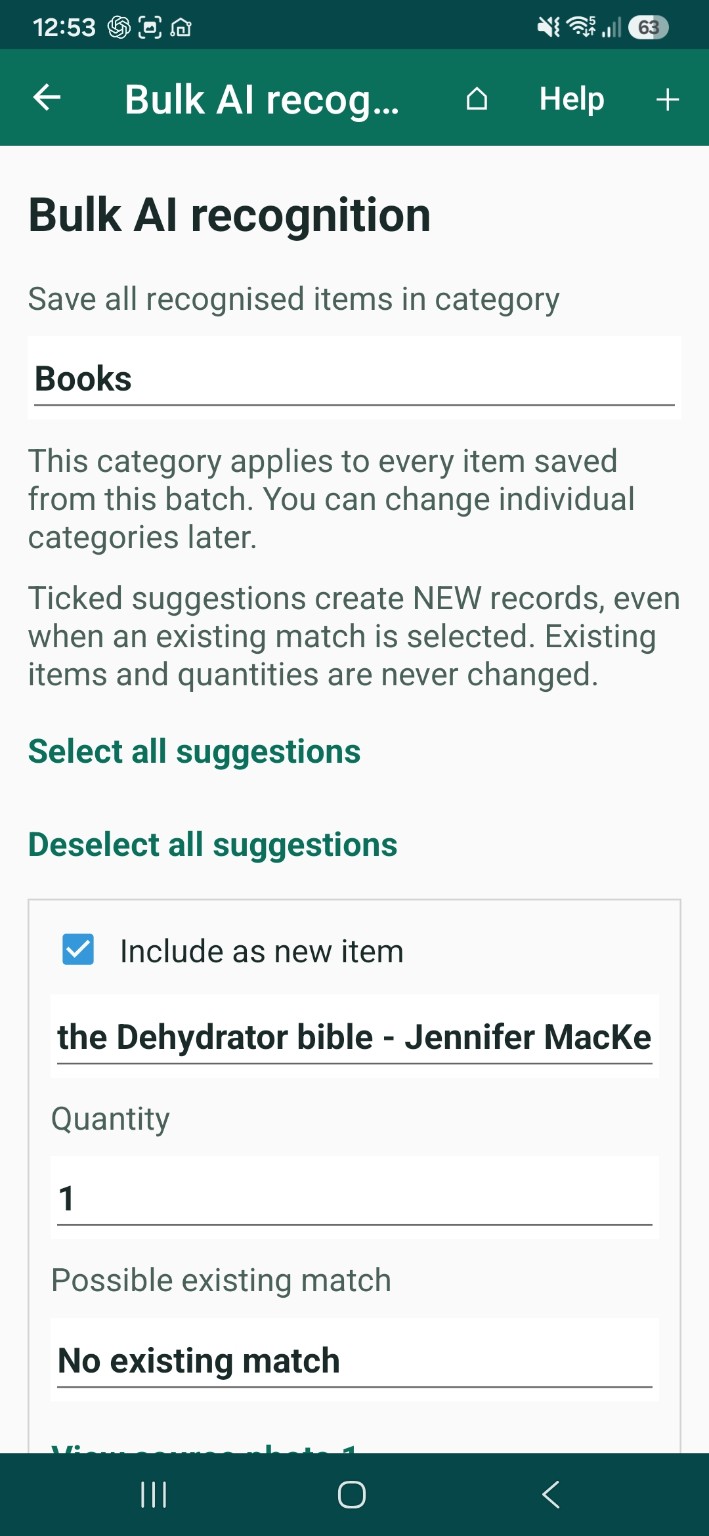
A tick means create a new record. Selecting a possible existing match does not merge the suggestion into it or increase its quantity. Leave already-recorded items unticked unless you intentionally want another separate record.
Check overlapping photos for duplicate suggestions. Two photographs of one book still represent one book. Selecting all also selects suggestions that may duplicate existing entries, so review them again.
Step 5
Repeats and identical items.
If two suggestions show the same object, untick the extra one. Two photos of one book still mean one book.
Own several identical items, such as four matching chairs? Keep one suggestion and set its quantity to the total. Names and quantities can be edited before you save.
Step 6
Choose a category and save.
- Choose a category for all new items in the batch. For a bookshelf this might be Books, and for a store of equipment, Tools. You can change individual ones later.
- The save category starts blank. Select it explicitly before saving: it applies to every new item in this batch. You can change individual item categories afterwards.
- If you started from a Site, check which Area the new entries will go into, where it is shown.
- Want a close-up photo for an item? Use Choose item photo crop where it is offered, and check the crop yourself.
- Choose Save selected new items, then confirm. The selected entries are added just like any other item.
Select all suggestions and Deselect all suggestions change the whole list at once. Check the possible existing matches again after using Select all.
Save photos with new items
When you tick Include as new item, Attach source photos to this new item is ticked too. Untick it if you do not want those photos attached. Photo controls appear only for selected new items.
Choose item photo crop lets you draw a box around an item. You can also adjust its horizontal position, vertical position, width and height with the controls. Choose Use this crop to keep that part of the photo.
Stock checks
Use photos when you count stock.
On the stock check screen, open the AI recognition option and photograph the items you are counting. Check the recognised quantities, and match each suggestion you select to an existing entry.
Choose Review stockcheck counts to send the counts back to the stock check screen. Make any corrections there before you save the stock check. Items not seen in the photos keep their current quantity, and are not set to zero.
Your photos
What happens to them?
- The recognition photos are temporary. They are removed from the server after processing. Unfinished or interrupted copies are normally cleared after 24 hours, when the service is running.
- Your phone removes the temporary photos once you have finished reviewing, unless you choose to keep them. A photo or crop you deliberately save with an item becomes an ordinary attachment in your inventory.
- OpenAI is set not to store responses. OpenAI may still keep data for up to 30 days to watch for misuse. Our normal storage backups may also keep recoverable copies for a time.
If something does not look right
Quick fixes.
Some items are missing
Add them by hand, or try a smaller group with closer, clearer photos.
The names are very general
The writing may be too small to read. Correct the name yourself instead of relying on a guess.
Processing failed
Your session is kept where possible. Check your connection and follow the retry options. If you need help, choose Copy error details and include them when you contact us.
I want to stop
Choose Discard session to remove the unsaved suggestions and the temporary photos.
Recognition can miss things or misread details. It cannot find what is hidden inside things, guarantee a full count or tell you what items are worth. If the recognition service is unavailable, the rest of your inventory works as normal.