 ThingzSafe
AI replacement valuation finds prices for similar items and estimates delivery, so you can choose a replacement value for each item you own. It is a starting point for you to review. It is not a guaranteed selling price, and it is not an insurer’s assessment.
Before you start
- Give the item a clear title and category. Add the make, model or edition, ISBN or barcode, size and any useful notes. For a book, the author and edition can make a big difference.
- Choose the country where you would buy the replacement, and the currency you want. Check these rather than relying on your phone or browser language.
- Check the warranty date and your insurance settings. If the warranty is still active, ThingzSafe looks for the price of a new item. If not, it looks for a used one. If you have switched on New for old, it always looks for a new one.
- You need an internet connection and a connected Pro household. Fair usage limits apply.
Value one item on Android
- Open the Thing, Part or Content and choose Edit details.
- Beside Current value (each), tap AI. Check the identity details in the edit form first.
- Check Country and Currency, then tap Generate AI valuation.
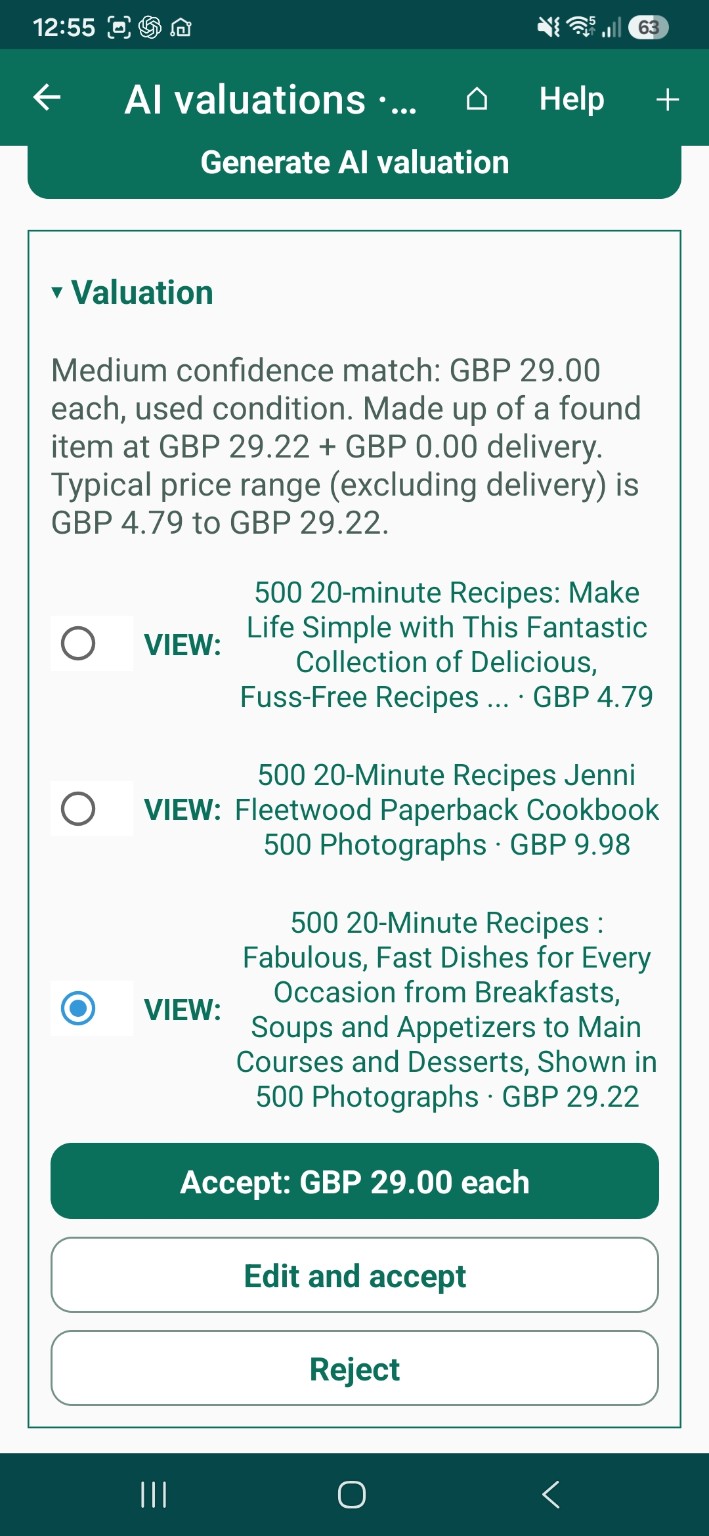
- Keep the valuation screen open while it works. Read the result, and open the VIEW links if you want to check a listing.
- Choose a price, then tap Accept or Edit and accept. The chosen value goes back to the edit form. Save the edit form to keep it.
The magnifying glass is a separate, ordinary web search. It does not create or accept an AI valuation.
Value several items together
On Android
Open AI valuations from Needs review, or from another supported item list. Tick only the items you want, then choose Generate. If you start from Needs review, only the items in that review list are included.
On the web
- Open Bulk Review Items.
- Tick the AI valuation column for each row you want. The box in the heading ticks or clears all of them.
- Choose Generate AI valuations for selected items · Pro. If you have unsaved changes in the grid, confirm the save first.
- In the valuation window, check Country and Currency, then choose Generate.
When it finishes, the list shows just the items from that run. Choose Show all items to go back to the full list, where it is offered.
Reading the result
- The proposed value is the replacement value for one item. Next to it you will see whether it is based on a new or used item, how confident the match is, the price found, delivery, and the usual price range without delivery.
- Up to three price choices show a low, a middle and a high example. ThingzSafe starts with the higher reasonable one. Choose another and the amount updates to include that listing’s delivery. Check the Accept amount before you accept.
- VIEW opens the original listing. Listings can change or end, show a different version, or have delivery limits. Check the exact model or edition, condition, quantity, currency and postage yourself.
- Confidence shows how well the listing seems to match your item. It is not a guarantee. The range shows the prices that were found. It is not a formal valuation certificate.
Country and delivery
ThingzSafe looks at sellers in your chosen country first. It uses overseas listings only when it cannot find reliable local ones. For overseas listings it allows extra for postage, at least three times the listed delivery cost, and it never assumes missing or zero postage is free.
Delivery is an estimate, especially for large items or international shipping. Check the destination and the seller’s delivery terms before you accept.
Accept, edit or reject
- Accept uses the amount shown for that proposal.
- Edit and accept lets you type your own reviewed replacement value, including delivery.
- Reject leaves the current value as it is.
- Mark item as reviewed when accepted also clears the item’s Needs review flag when you accept its value. It is separate from the box you ticked to choose the item.
- Accept selected reviewed proposals applies the proposals you have selected and closes the valuation screen. On the web, the values go back into the Bulk Review grid. The accept button also appears below the results, where shown.
Accepted results fold away so you can carry on down the list. Your existing values do not change until you accept. Values are per item, and your inventory totals take quantity into account.
If you started from a single item’s edit form, accepting returns the value to that form, so save the form to keep it. When you accept several items together, their values are saved straight away.
If it stops or goes wrong
- Cancel remaining stops any further items once the current one finishes. Results already found are kept for you to review. Cancel closes the whole process, and values you have already accepted stay saved.
- If the connection drops, follow the message on screen. A failed lookup may need a fresh try, but one that is still working can be recovered. Please do not keep pressing Generate just because a result has not appeared yet.
- If Android offers Retry after a display problem, it only shows the result again, without another AI lookup. Use Details or Copy details when you contact us.
- If nothing reliable is found, improve the title, category, make, model or edition, or type in a value yourself.